Using Google Meet Transcript with Nicoka
Google Meet Transcript automatically brings the transcript of your Google Meet meetings into Nicoka. Nicoka's AI writes a report from it, which is added to the participants' records: candidates, contacts and employees.
This service is in beta. It cannot be switched on by yourself: activation requires action from your Google Workspace administrator and setup by Nicoka on your instance. Contact your Nicoka representative or support (support@nicoka.com) to get it.
1. Connect your account
Once the service is active, each user connects their own account. The connection is personal: only your meetings are retrieved.
- At the top right, click your initials, then Integrations.
- In the AI note taking panel, on the Google Meet Transcript card (tagged BETA), click Connect my account.
- Sign in with your work account and accept the requested permissions (read-only access).
- Back in Nicoka, a confirmation message tells you the account is connected.

The card then shows the connection status with a coloured dot: green when everything works, amber when an administrator action is still pending, red when the account is disconnected. In that case, click Reconnect.
2. During your meetings
- Start transcription in Google Meet: without it, there is nothing to retrieve.
- Preferably schedule the meeting in your Google calendar or in Nicoka: the guest list is what links the report to the right records. A call started without a calendar event only has you as a known participant.
- Google takes some time to generate the transcript after the meeting (up to about an hour). Nicoka then retrieves it automatically, following activity on your calendar: there is no fixed time.
3. Find the reports in Nicoka
Nicoka links the transcript to the meeting participants through their email address (or phone number), then the AI writes the report:
- on a candidate or contact record, it appears in the timeline as an AI Interview Report activity; when a candidate attends, the report goes to their record rather than to the contacts';
- each employee who attended, apart from yourself, gets an AI Meeting Report activity;
- the full transcript is attached as a document and can be opened with Show full transcript.
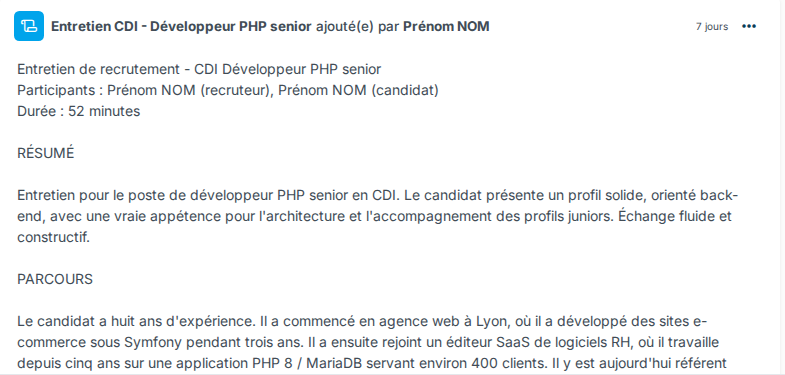
You get a notification when the report is added. If no participant is recognised, the notification lets you pick the record yourself.
If the meeting was scheduled in the Nicoka calendar, the report is also linked to it through the video-call link. The summary then follows the AI prompt defined on the event type.
4. Fill in a questionnaire from the report
The report can then be used to fill in a questionnaire: a candidate evaluation, a contact's CRM questionnaire or an employee interview, from the activity menu (Fill a review from this meeting, for example). If the meeting is linked to an event type set up for it, the candidate's evaluation or the contact's questionnaire is even pre-filled automatically as soon as the report arrives.
Everything is explained in Filling in a questionnaire with AI from a meeting.
5. Manage transcriptions
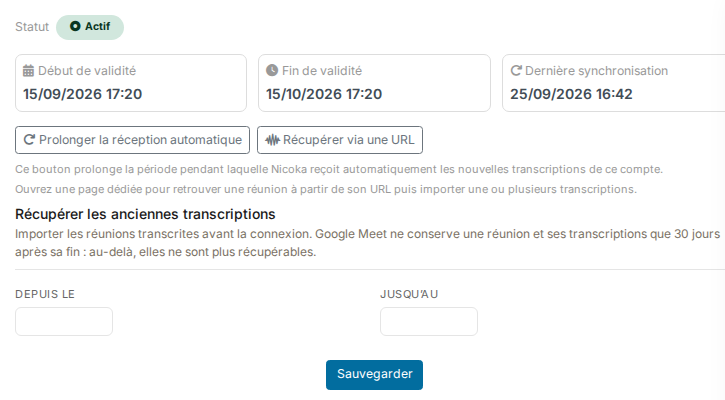
On your account card, the Manage transcriptions button opens a monitoring panel:
- the status of automatic reception (status, validity start and end, last synchronisation) and a button to extend automatic reception;
- Retrieve from a URL: paste a meeting link (
https://meet.google.com/abc-defg-hij) to import its transcript, useful when a report has not arrived; - Retrieve past transcriptions: import the meetings of a period. A report already in Nicoka is never duplicated.
Known limitations
- 30-day retention at Google: 30 days after a meeting ends, Google no longer exposes it, and it can no longer be retrieved, by URL or by history import.
- Only meetings your connected Google account can access are retrieved.
- Linking to records relies on participants' email addresses: make sure they are filled in Nicoka.