Filling in a questionnaire with AI from a meeting
After an interview or a meeting, Nicoka can fill in a questionnaire for you: the AI reads the meeting report, or your own notes, and enters the answers it finds there. You then review the result before validating it.
This article covers the three ways to use it, for candidates, contacts and employees, and the setting that controls which questions the AI is allowed to fill.
What the AI needs
The AI works from text: the transcript or summary of a meeting, notes you paste or dictate, or both.
- A meeting report arrives automatically on the record once an AI note-taking tool is connected to Nicoka: Noota, Leexi, Claap, Google Meet Transcript or Microsoft Teams Transcript. It appears in the timeline as an AI Interview Report activity (candidates, contacts) or an AI Meeting Report activity (employees).
- Your notes are enough too: no tool is needed to paste or dictate a text.
The AI only answers from that text: if a piece of information is not clearly there, the question stays empty. It does not make answers up.
1. Choose which questions the AI may fill
By default, every question of a questionnaire is open to the AI. To exclude one, for instance an assessment that must remain the evaluator's own:
- Open the questionnaire in the settings (see Creating and managing candidate questionnaires or Managing interviews).
- Hover over the question and click the pencil icon: the question panel opens.
- Untick Allow AI filling, below the mandatory checkbox, then click update. When creating a question, the checkbox is under Advanced options.
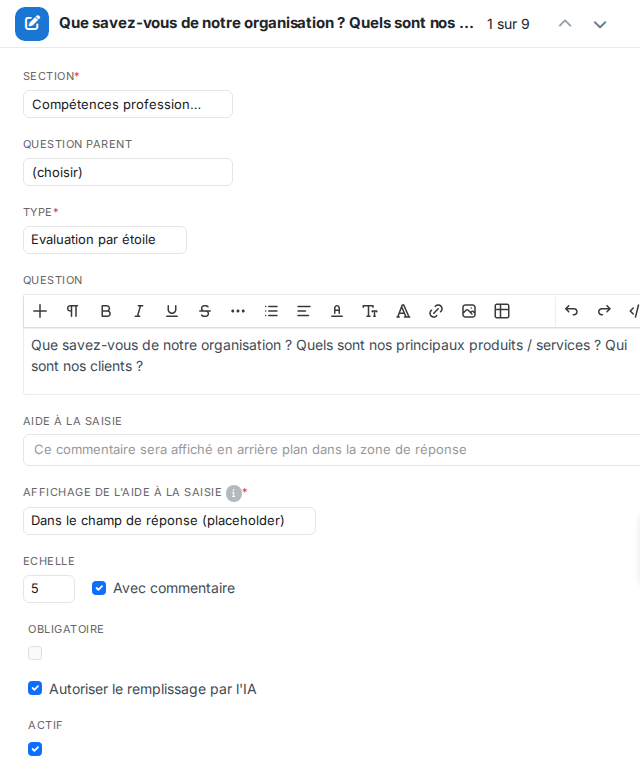
An unticked question is never suggested or changed by the AI, even when empty. In the editor it is flagged with a small crossed-out wand, with the tooltip Closed to AI filling.
Tip: a question's help text is passed to the AI. Precise help ("annual gross salary in euros", "answer Yes only if the candidate agrees to travel") clearly improves the answers.
The AI can fill open questions, Yes / No, multiple choice, dates, amounts, stars, traffic lights, gradient sliders, skills assessment, and questions linked to a field of the record. File, objectives, training and project questions are always filled by hand.
2. Candidates: fill in an evaluation
From a meeting report
- On the candidate record, find the meeting's AI Interview Report activity in the timeline.
- In the activity's action menu (… icon), click Fill a review from this meeting.
- The add-evaluation window opens, linked to that meeting. Pick the questionnaire if Nicoka has not preselected it.
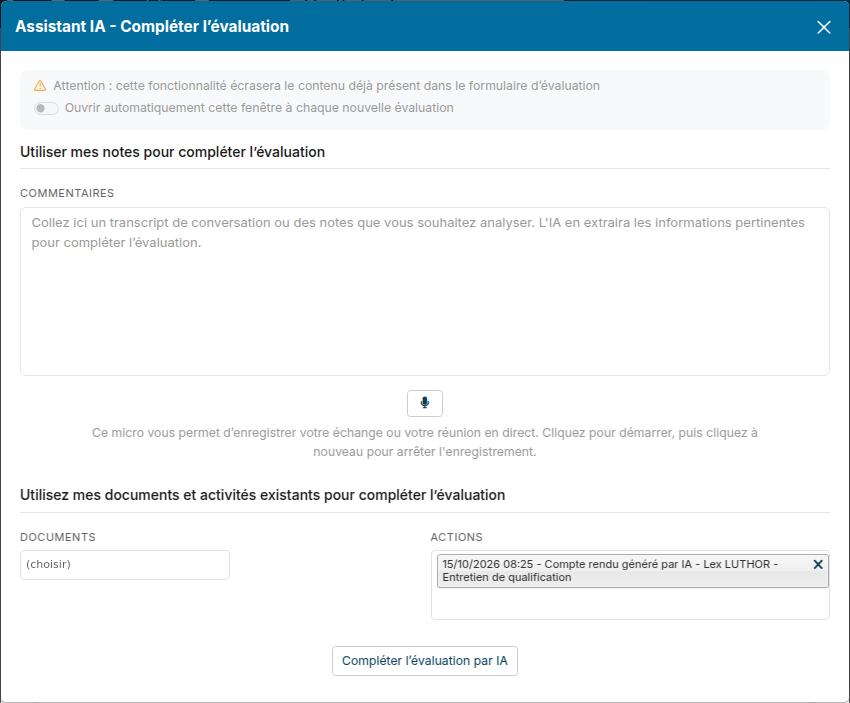
- Click Use my notes to complete the evaluation: the AI Assistant - Complete the evaluation window opens with the meeting report already selected under Actions. The AI works from the whole conversation, not only from its summary.
- Add your own notes, other documents or activities of the candidate if needed, then run the AI completion.
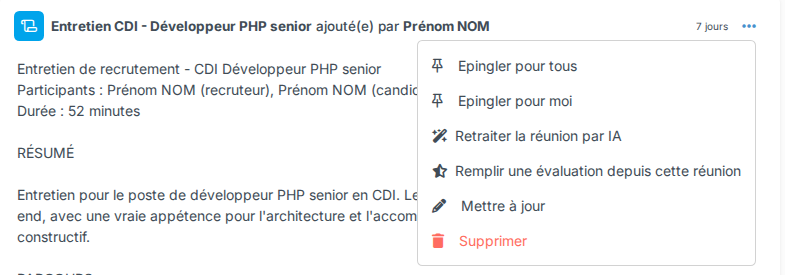
- The answers appear in the form. A question with no information in the meeting stays empty and is flagged as missing information. Review and correct the answers, then save.
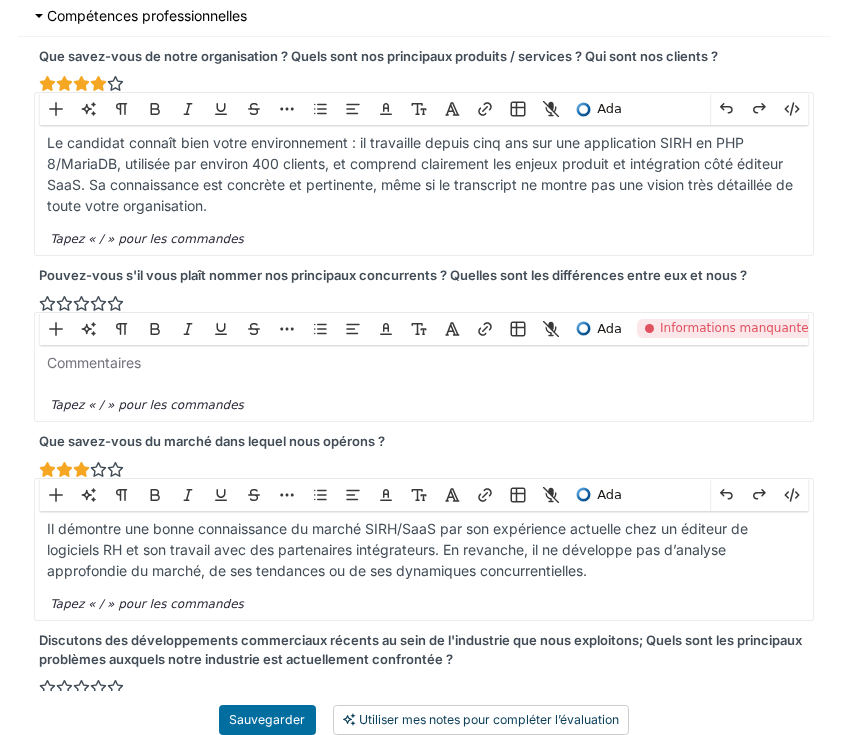
Nothing is saved until you click save. Note that the assistant replaces what was already typed in the form.
From your notes, without a meeting
The Use my notes to complete the evaluation button is available on every candidate evaluation, new or existing. Paste your notes or dictate them with the microphone, then run the completion. A switch lets the window open automatically on every new evaluation.
Updating the record
When a question is linked to a field of the record (availability, salary expectations, contract type…), its answer is written to the candidate record when the evaluation is saved. The standard candidate interview debrief questionnaire already has such a section, which you can copy as a starting point.
3. Contacts: fill in a CRM questionnaire
- First add a questionnaire to the record with the usual Add a questionnaire action: the AI fills an existing questionnaire, it does not create one.
- In the timeline, on the AI Interview Report activity, open the … menu and click Fill a questionnaire from this meeting.
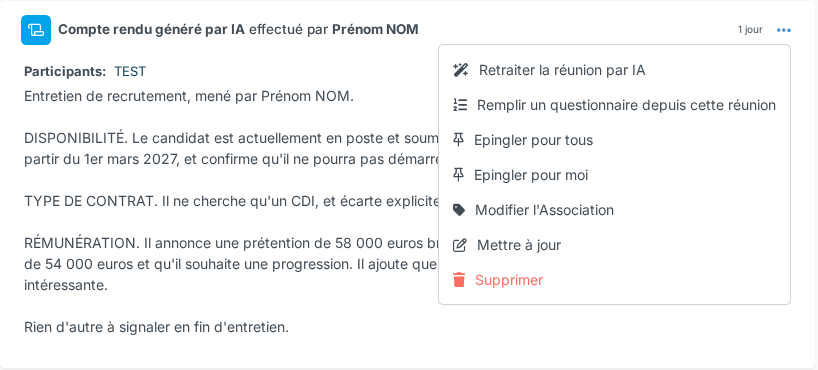
- In the AI assistant window, pick the questionnaire and the transcription, optionally add your notes, then click generate.
- The questionnaire is updated and opens: review and correct the answers.
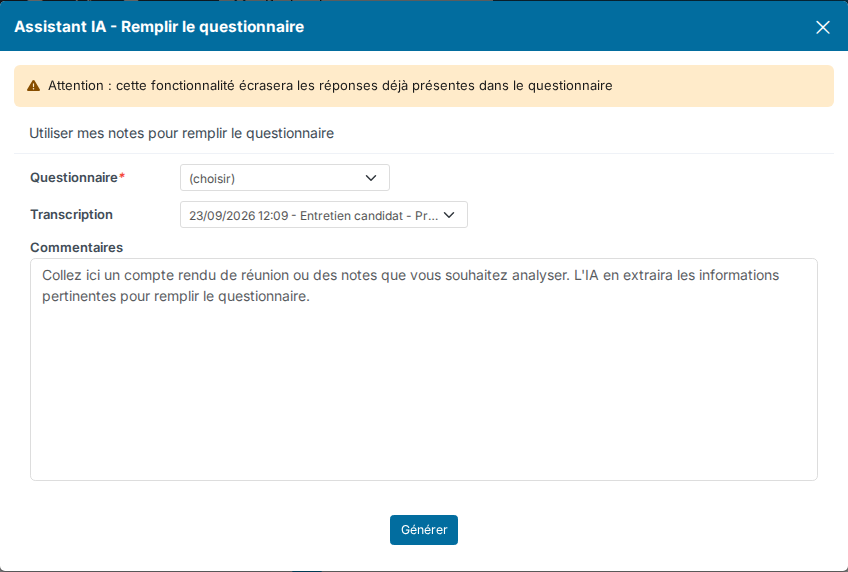
Answers already present in the questionnaire are replaced.
4. Employees: prepare an interview
Two entry points lead to the same AI assistant window:
- on the employee record, the AI Meeting Report activity > Fill a review from this meeting;
- in the interview itself, the Use my notes to complete the evaluation button at the top of the screen.
In the window, pick the meeting transcription, optionally add your notes, then click generate.
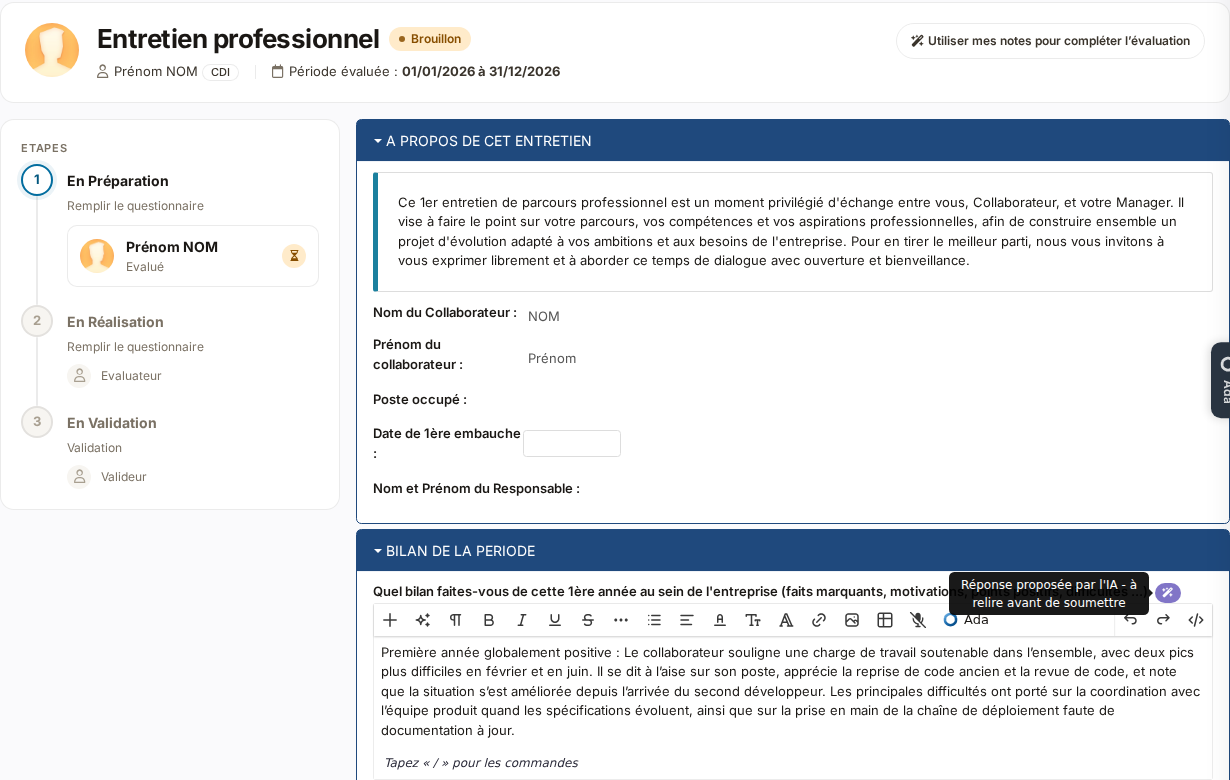
The AI only fills the questions you can edit at the current step. Answers are saved as a draft: the interview does not move to the next step and nobody is notified. Each suggested answer carries a badge Answer suggested by AI - review it before submitting, which disappears as soon as you edit it. You submit the interview yourself once reviewed.
The button is not shown at validation or final approval steps.
5. Automatic pre-filling when the report arrives
For recurring meetings of the same type (screening interview, discovery call…), Nicoka can fill the questionnaire on its own as soon as the report arrives.
Setup
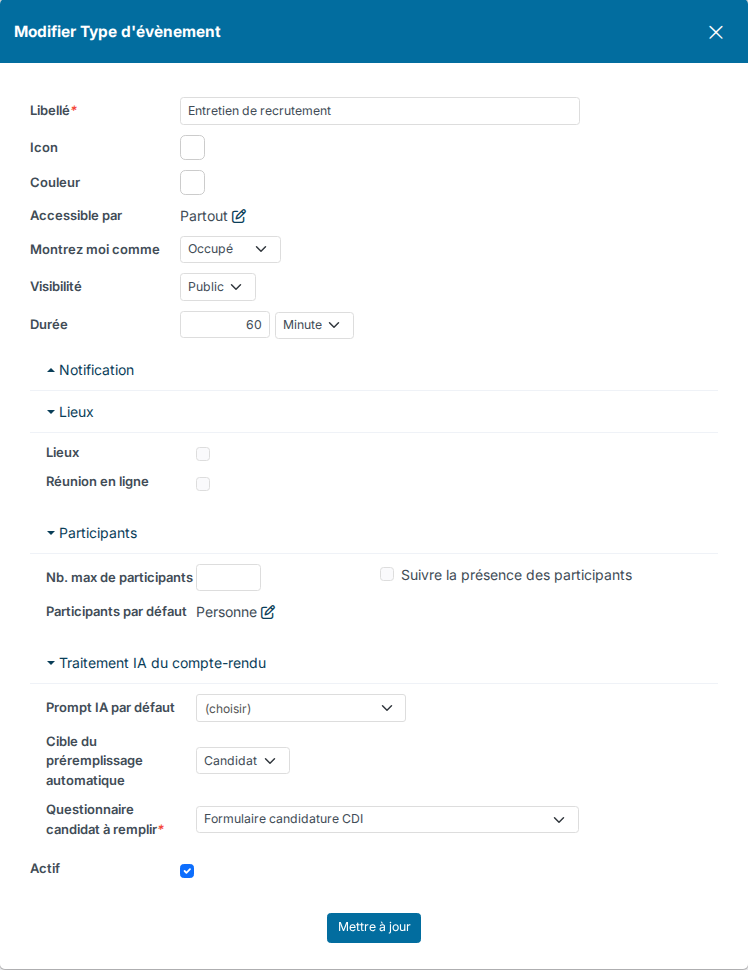
- Open the event type in the calendar settings (for example the interview types of the Recruitment module, or the calendar event types on the CRM side).
- In the AI report processing block, choose the automatic pre-filling target: Candidate or Contact.
- Pick the candidate questionnaire or CRM questionnaire to fill, then save.
How it works
- The meeting must be scheduled in the Nicoka calendar with that event type, and the report must be linked to it, which Noota, Leexi, Claap, Google Meet Transcript and Microsoft Teams Transcript do through the video-call link.
- The meeting must have a single candidate (or a single contact) among its participants. With several, nothing is filled automatically: each keeps the report, and manual filling remains available.
- Filling runs on behalf of the meeting organiser, with their rights.
- Candidate: an evaluation is created, dated at the start of the meeting, with its answers flagged as suggested by AI. Record fields linked to questions are updated. A meeting never produces two evaluations.
- Contact: Nicoka fills the most recent blank questionnaire of that type on the contact record. No questionnaire is created, and a questionnaire that already holds an answer is left untouched.
Automatic pre-filling does not apply to employee interviews, nor to phone calls (Aircall, Ringover) that are not linked to a calendar event.
Good to know
- Each filling uses your AI usage quota. A message tells you when the daily or monthly quota is reached.
- You need the usual rights: read the report, create an evaluation (candidate), edit the questionnaire (contact), or have questions to answer in the interview (employee).
- Always review the result: the AI suggests, you validate.