Connect LinkedIn to Nicoka: account, limits and sending
Goals
- Write from Nicoka: send your LinkedIn messages, InMails and invitations from records, or to several candidates of a job at once, without switching applications.
- Source and prospect: search for profiles on LinkedIn from the CV library and from Contacts.
- Everything in one place: your LinkedIn conversations are imported onto the person's record and into Messaging.
- Protect your account: sending limits set according to your LinkedIn subscription.
WhatsApp has its own page: Send WhatsApp messages from Nicoka.
Access your integrations
The connection is individual: each user links their own LinkedIn account. A colleague's account cannot be used to write on their behalf.
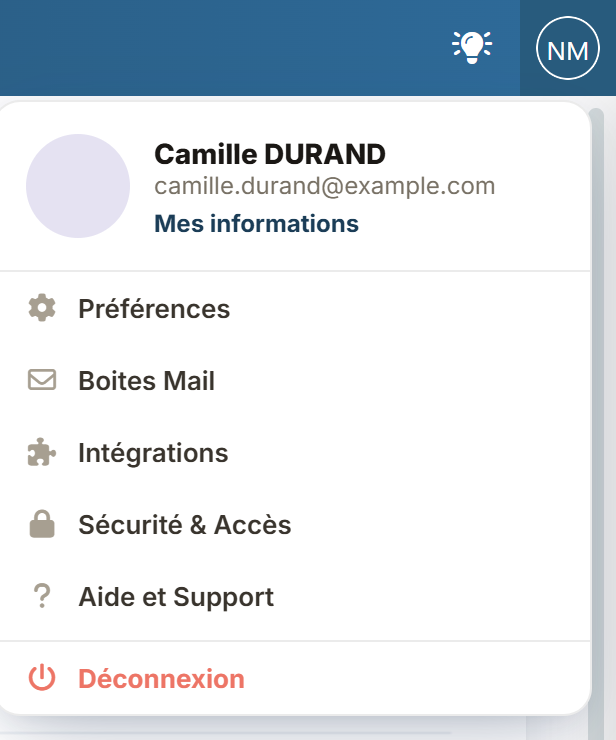
- At the top right of the screen, click your initials. In the menu that opens, choose Integrations.
- The Integrations page opens. In the Messaging apps panel, click Connect my LinkedIn account.

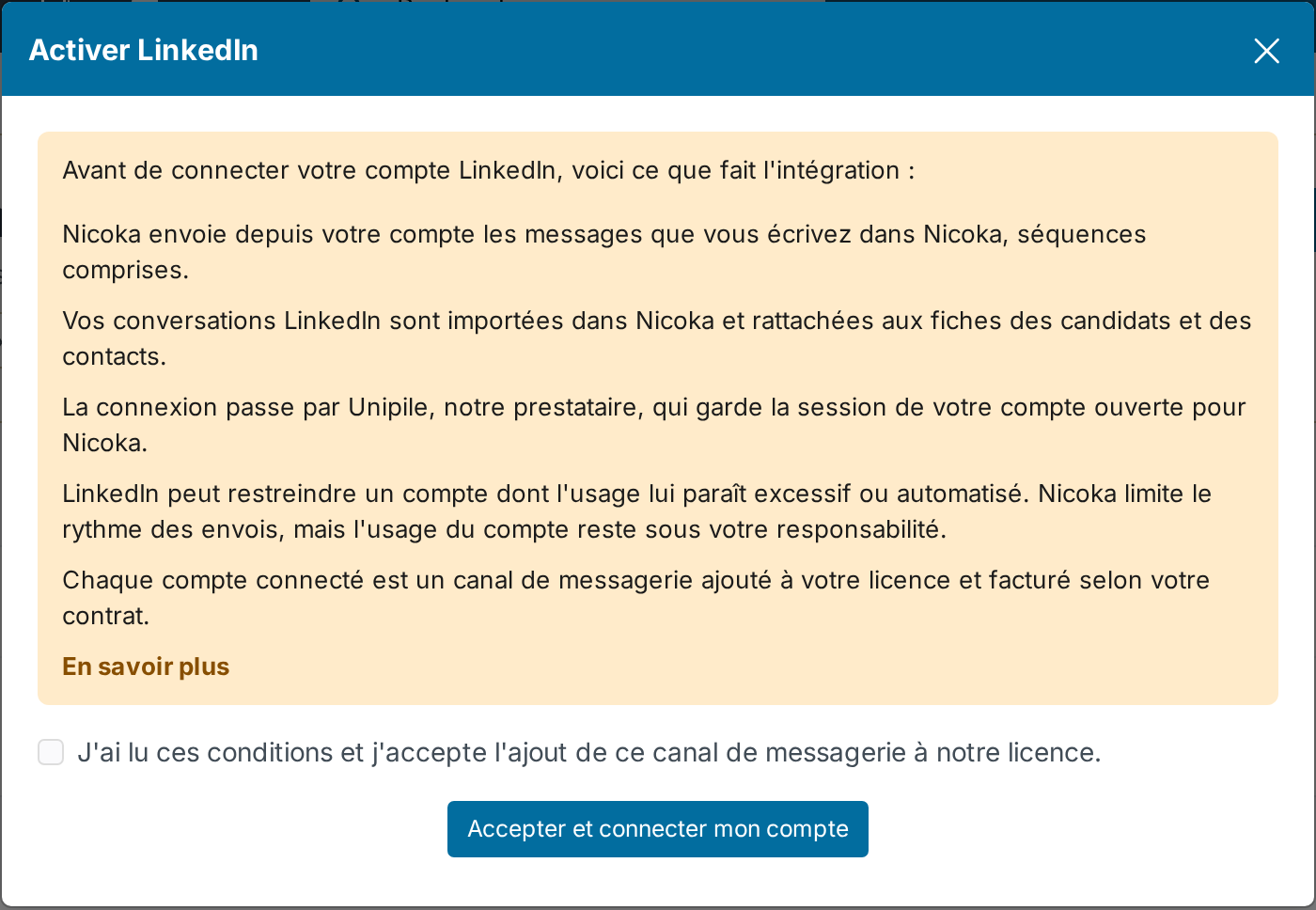
- The Activate LinkedIn window sums up what the integration does: the messages sent from your account, the import of your conversations, the connection through Unipile, our provider, and the risk of LinkedIn restricting your account. Each connected account is a messaging channel added to your licence and billed as per your contract. Tick the box to accept these terms, then click Accept and connect my account.
- The connection wizard opens in the same tab. Follow it: at the end, you come back to Nicoka.
Nicoka keeps the date of your acceptance. Reconnecting your account does not ask for it again.
Once your account is connected, the LinkedIn row shows the status Connected, with the Configure and Remove buttons. If the connection drops, Nicoka tells you and offers Reconnect: your settings and limits are kept.
Set up your LinkedIn account
On the LinkedIn row of the Integrations page, click Configure. A panel opens on the right of the screen.
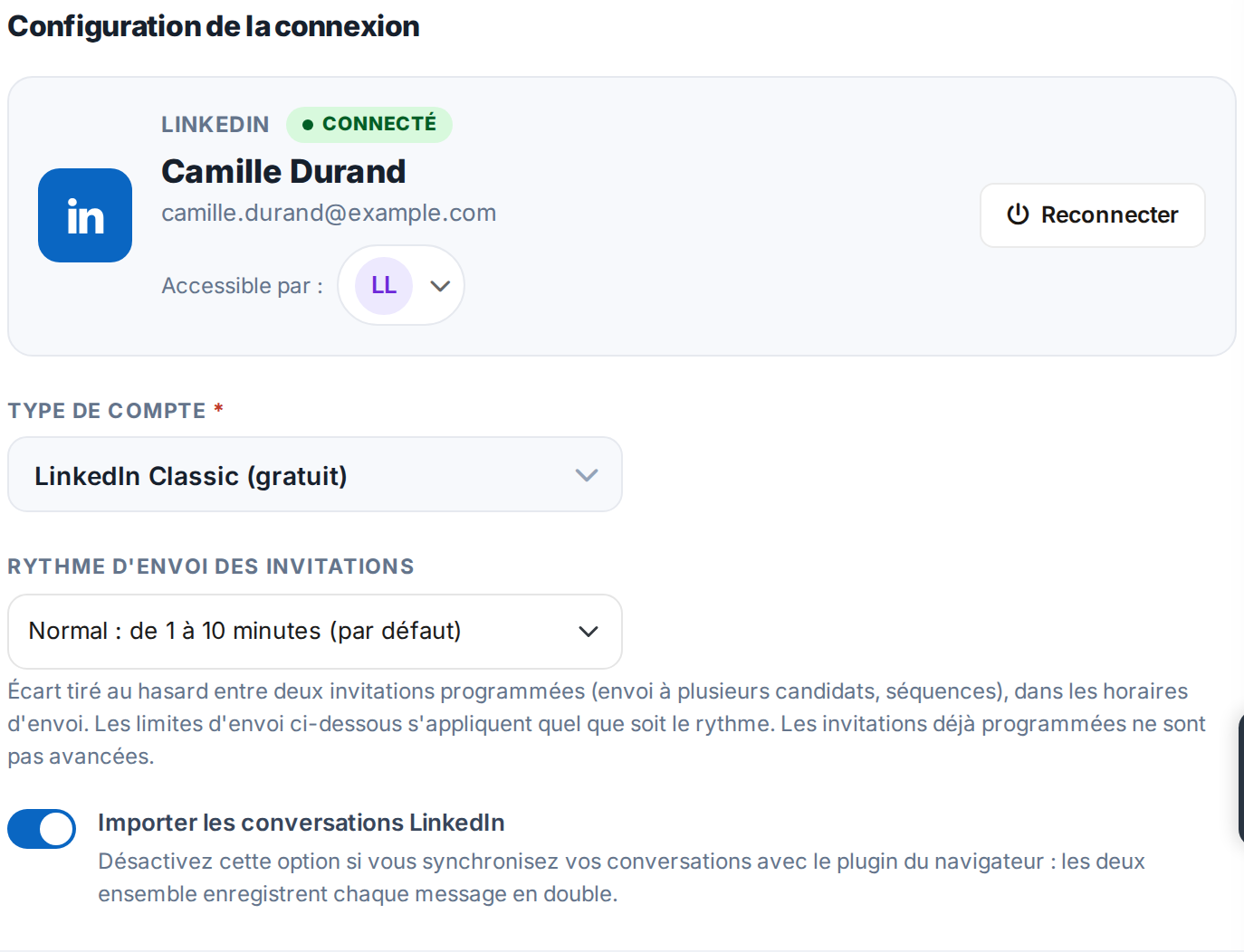
- Account type: choose the one matching your LinkedIn subscription. It sets the default limits: LinkedIn Classic (free), Premium Career, Premium Business, Sales Navigator Core or Advanced, Recruiter Lite or Corporate. It also sets the length of an invitation note: 200 characters on a free account, 300 on a paid one. When LinkedIn reports a Premium account, Nicoka allows 300 characters even if the type was left on Classic, and a note that is too long is refused before sending rather than cut.
- Invitation sending pace: the gap between two scheduled invitations (sent to several candidates of a job, sequences), drawn at random within the range you pick: Careful (10 to 30 minutes), Normal (1 to 10 minutes, the default) or Brisk (1 to 3 minutes, about a hundred invitations in 3 hours). Your account's sending limits apply whatever the pace, and invitations already scheduled are not brought forward: pick the pace before you start a send.
- Import LinkedIn conversations: your conversations with the candidates and contacts in Nicoka are imported onto their record, including messages sent directly from LinkedIn. Turn this option off if you already sync your conversations with the browser plugin: with both on, every message is recorded twice.
- Available for: the users who can use this account.
LinkedIn sending limits
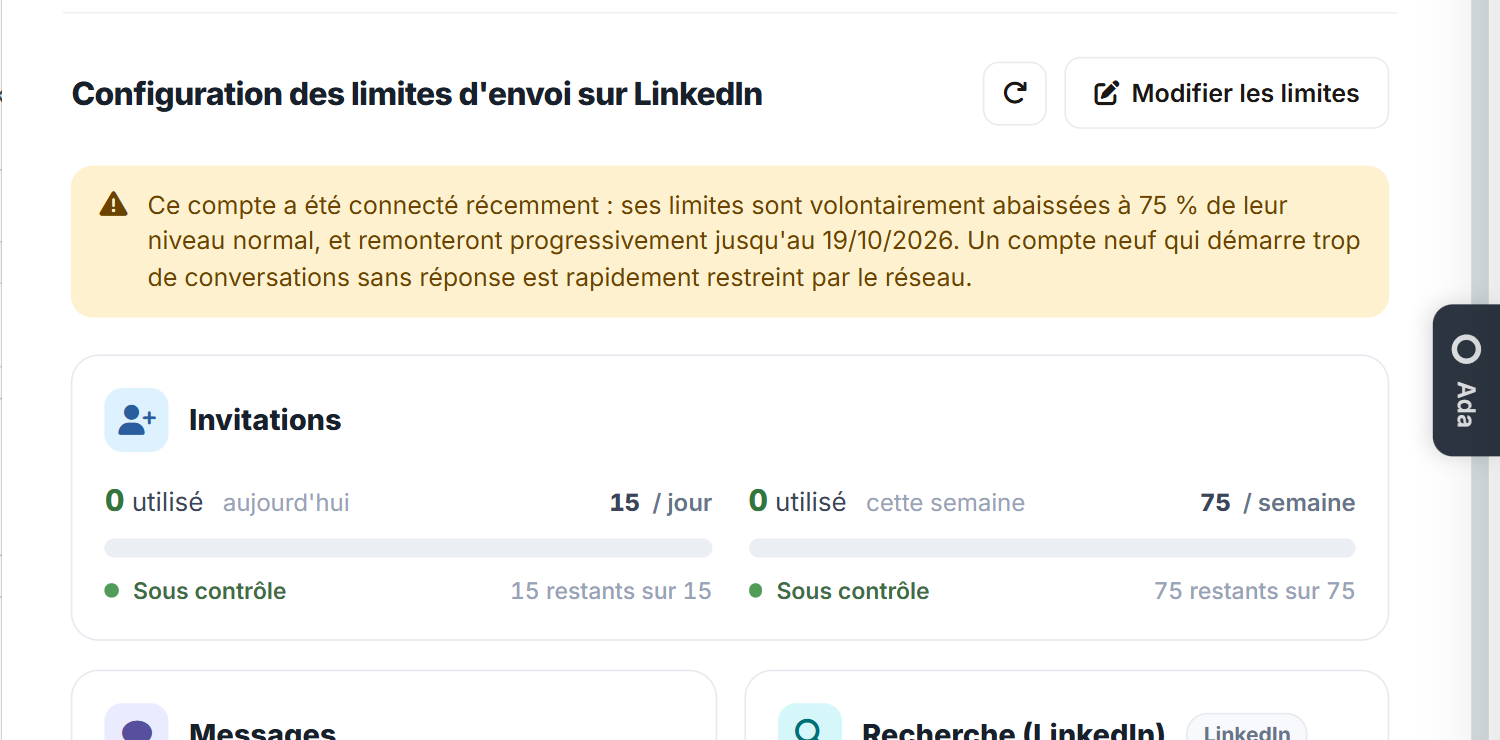
Further down the same panel, Configuration of sending limits on LinkedIn tracks your usage for the day and the week, with one gauge per type of action: invitations, messages, InMails, searches and profile visits. The Edit limits button lets you adjust each ceiling. Leave a value empty to keep the default limit of the account type.
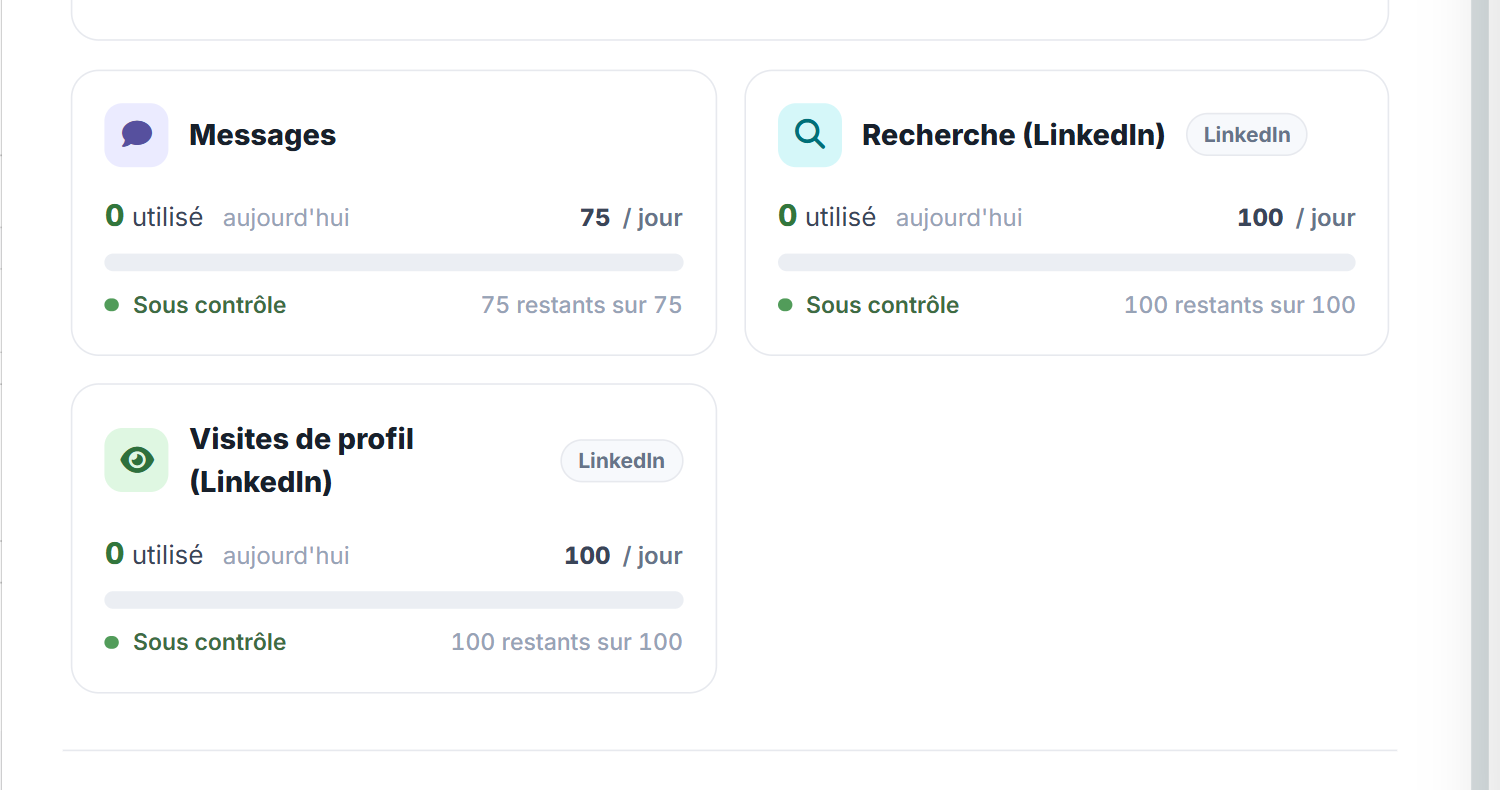
Default limits by account type:
| Account type | Invitations per day | Invitations per week | Messages per day | InMails per day | Searches per day | Profile visits per day |
|---|---|---|---|---|---|---|
| Classic (free) | 20 | 100 | 100 | — | 100 | 100 |
| Premium Career | 75 | 200 | 150 | 30 | 1,000 | 100 |
| Premium Business | 75 | 200 | 150 | 30 | 1,000 | 150 |
| Sales Navigator Core | 100 | 200 | 150 | 50 | 2,500 | 150 |
| Sales Navigator Advanced | 100 | 200 | 150 | 50 | 2,500 | 200 |
| Recruiter Lite | 100 | 200 | 150 | 50 | 2,000 | 2,000 |
| Recruiter Corporate | 150 | 300 | 150 | 50 | 2,500 | 2,000 |
A recently connected account deliberately starts lower: half of its invitation, message and InMail limits in the first week, three quarters in the second, then the values in the table. A new account that opens too many conversations without replies is quickly restricted by LinkedIn. For the 24 hours following a reconnection, these same limits are brought down to a quarter. Nicoka shows the date when they return to their normal level.
Sending is spaced out: two invitations from the same account go out 1 to 10 minutes apart at the normal pace (see Invitation sending pace above), two InMails 5 to 15 minutes apart, two messages 3 to 10 minutes apart, within your sending hours (at least until 9 pm for invitations). A batch of 50 invitations is therefore spread over a few hours at the normal pace, a little under two hours at the brisk pace: this is intended, LinkedIn spots bursts.
Source and prospect from Nicoka
The Search on LinkedIn button sits at the top of two lists. It does not do the same thing depending on where you are.
Source candidates, from the CV library
In Recruitment > CV library, the button starts LinkedIn sourcing for your recruitments.

- You browse profiles one by one and act on the candidate straight from the results.
- You can add a profile to a job, generate their CV as a PDF and save the AI analysis as a note.
- Profiles already in your database are identified. If an invitation has already been sent to the person, a message tells you so.
- Your profile visit quota is displayed during the search.
Source for a job, from the job
On a job's page, the Add candidates button offers Search on LinkedIn. Sourcing opens for that job: the keywords and the location are prefilled with the job's title and city, to adjust before running the search, and the profiles you add go straight to the job. When your workspace has connected Kalent, the same menu also offers Search on Kalent (see Searching for profiles with Kalent).
Prospect contacts, from Contacts
In CRM > Contacts, the same button is used for business prospecting.

- Profiles already in your database are detected.
- Nicoka finds the profile's company and the account to link it to.
- A contact must exist in Nicoka before an invitation is sent: the flow explains it.
Write from a record
On a candidate or contact record, the action bar offers one icon per channel, including LinkedIn (and WhatsApp if you connected it).

The LinkedIn actions icon opens a menu with three choices:
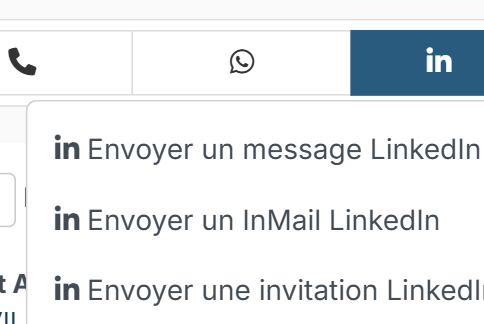
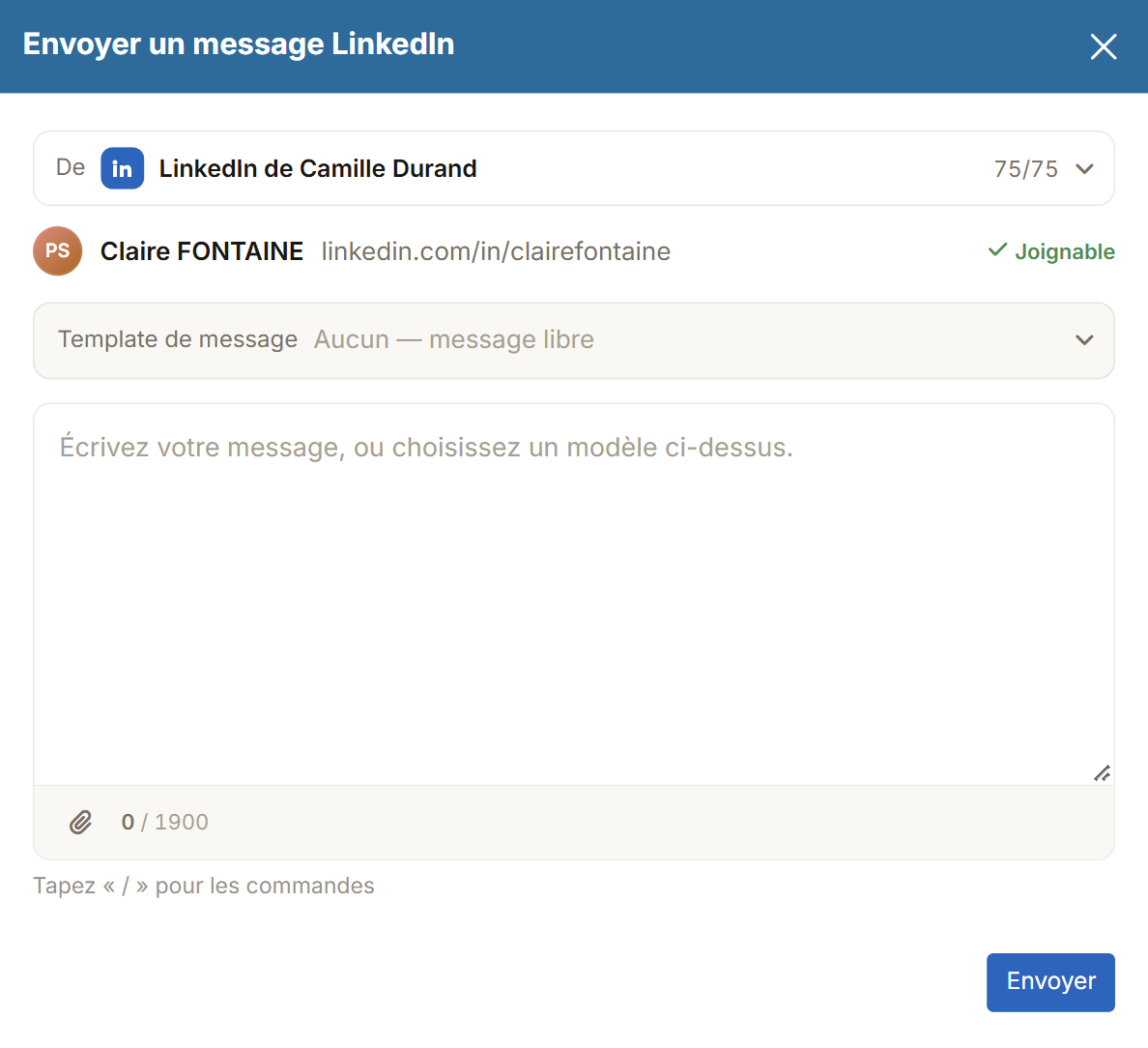
- Send a LinkedIn message: a message to someone in your network, from a template or free text (1,900 characters at most). The window shows your sending account and the number of messages left. Not ready to send it yet? Save as draft keeps it on the record, marked “This message is a draft” in the timeline: pick it up again with Change in the row's ··· menu, or drop it with Discard the draft. The draft keeps the text, the account and the recipient; add any attachment again when you send it. For someone who is both a contact and a candidate, the draft is filed on the candidate record and can be picked up from either record. The button only appears for a message to a single person.
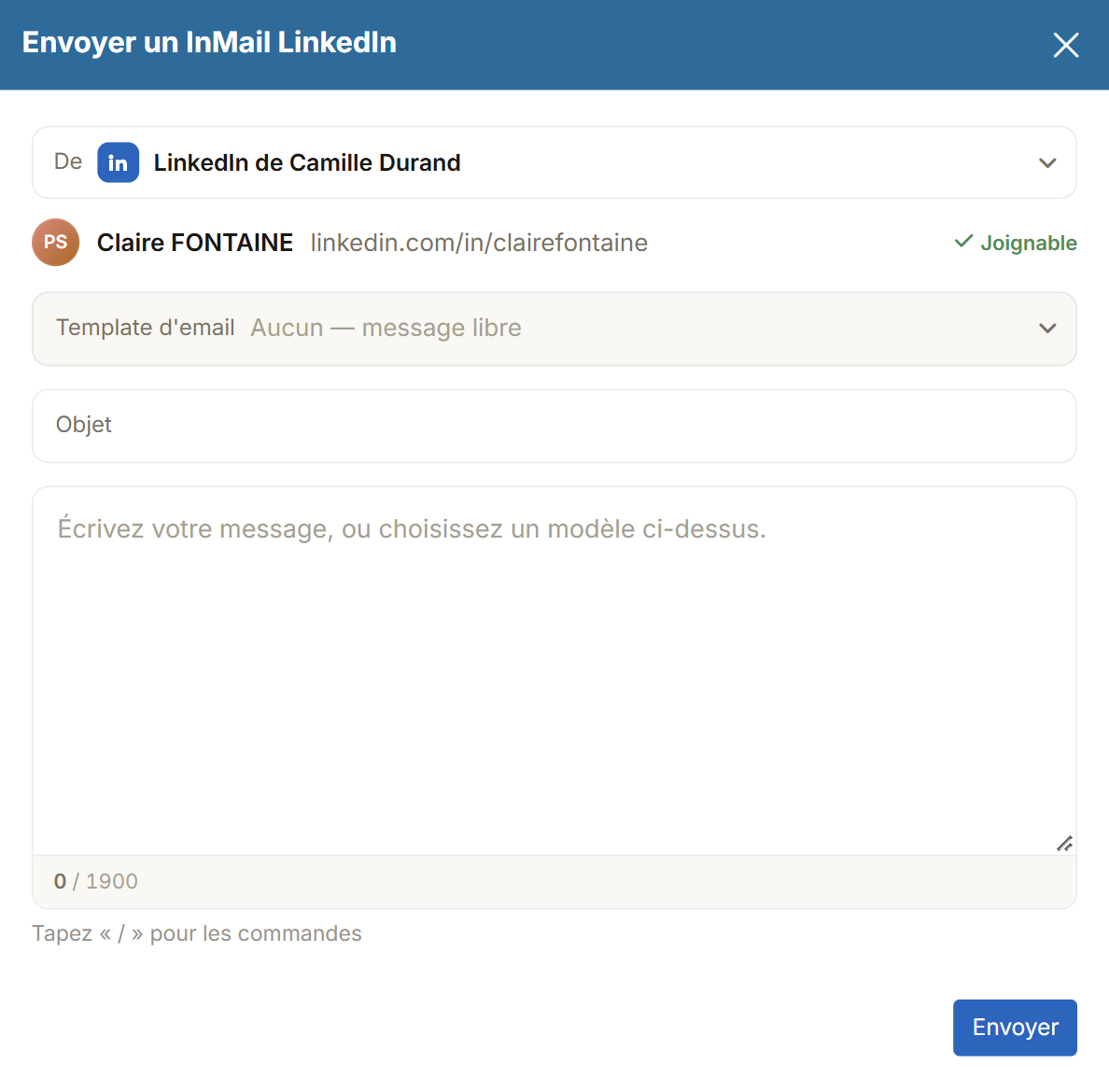
- Send a LinkedIn InMail: a message with a subject, including to someone outside your network.
- Send a LinkedIn invitation: a connection request, with an optional note.
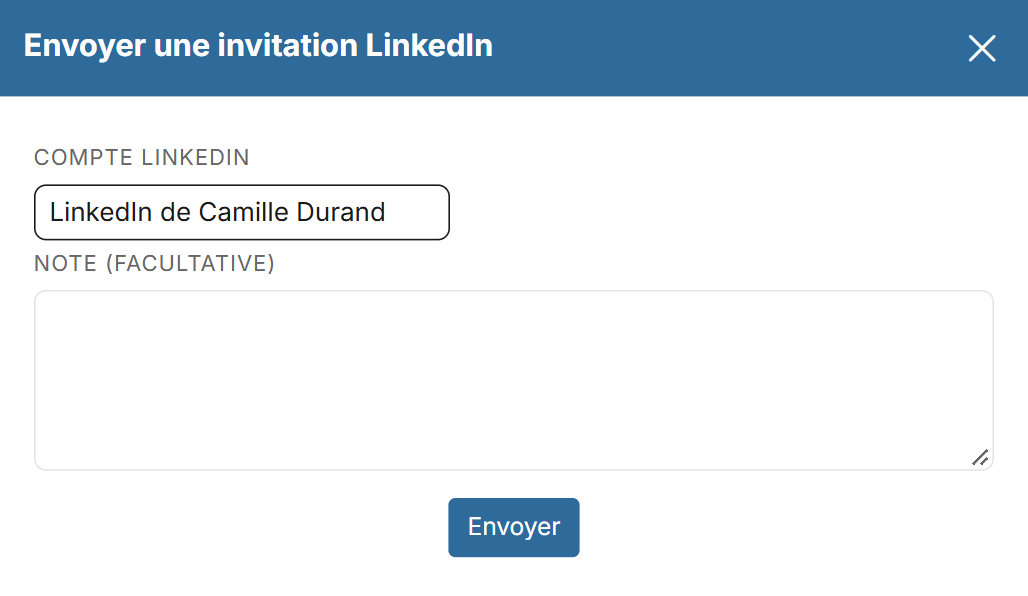
Each action is logged on the record, in the person's timeline, with its own activity type. When the person accepts an invitation sent from Nicoka, a Linkedin Invitation Accepted activity is added to their timeline, a few hours after the acceptance: LinkedIn does not report it in real time.
Write to several candidates of a job
In a view of a job (Columns, Tiles or Table), tick candidates, then open Actions:
- Send a LinkedIn message: a message to each ticked candidate.
- Send a LinkedIn invitation: a connection request to each of them, with an optional note.
The window offers your sending account, your Messaging templates and free text. Type "/" to insert a variable, such as the title or the first name: it is replaced for each candidate when the message leaves. For an invitation, the counter follows your account's note limit, 200 characters on a free account and 300 on a paid one. It counts the variable as it is displayed: keep some margin. A candidate whose note goes over the limit once the variables are replaced is left out and named in the result message; the others get their invitation.
Candidates without a LinkedIn profile on their record are shown in red and receive nothing, and an invitation already scheduled for a candidate is not sent twice. Sends are spaced out as explained above: the window confirms how many invitations are scheduled, and each one appears in the candidate's timeline at its scheduled time.
On a free LinkedIn account, LinkedIn only accepts about 5 invitations with a note per month: to invite a selection, leave the note empty.
Find the LinkedIn profile of a record that has none
A candidate imported from a job board or a CV, a contact imported from a file or typed in, often has no LinkedIn profile on their record: the three actions above and the LinkedIn steps of a sequence then have no recipient. Nicoka can look it up for you, with your connected LinkedIn account.
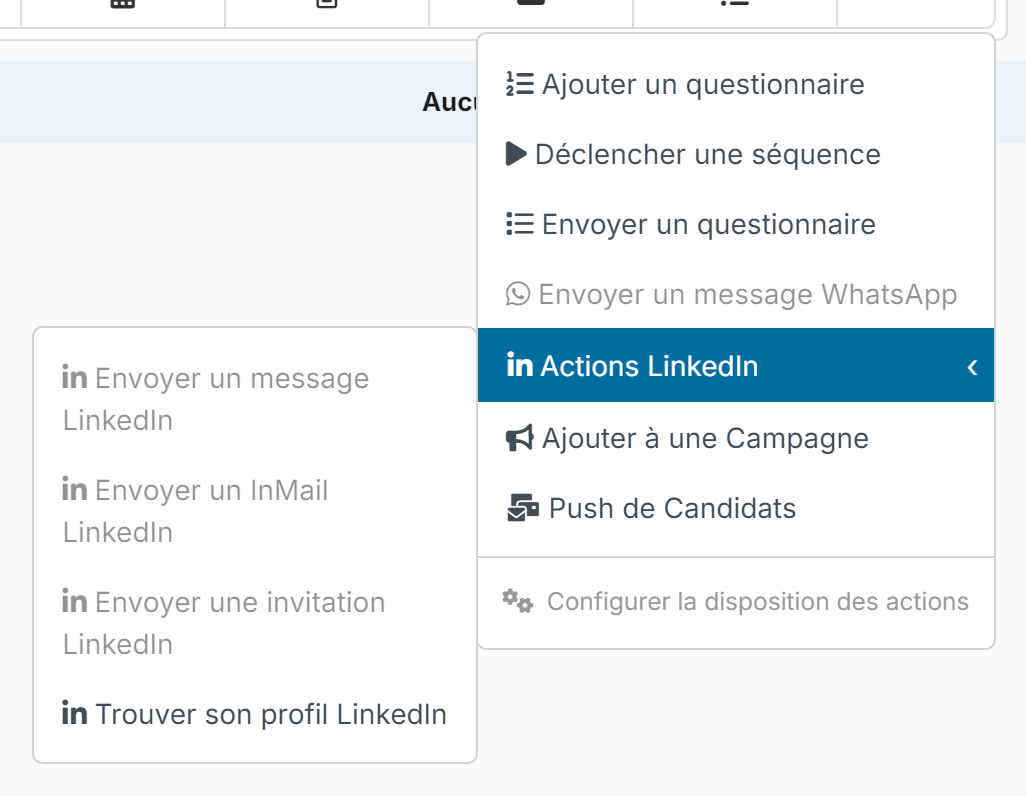
From the record: on a candidate, the LinkedIn menu of the header offers Find their LinkedIn profile. On a contact, the entry sits in the LinkedIn actions submenu of the timeline's ⋯ button, under the three send actions, greyed out until the record has a profile.
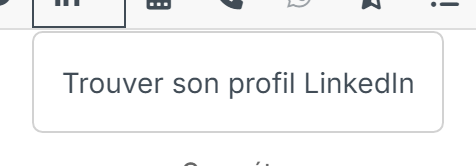
Nicoka runs a LinkedIn search on the name, the employer (the candidate's current company, the contact's account) and the location of the record, limited to its country, then lists the profiles found with what matches: Same name, the employer, the city. Click Attach next to the right profile: the record reopens with its LinkedIn actions enabled. A profile already attached to another record is flagged with a link to it, to merge if it is the same person.
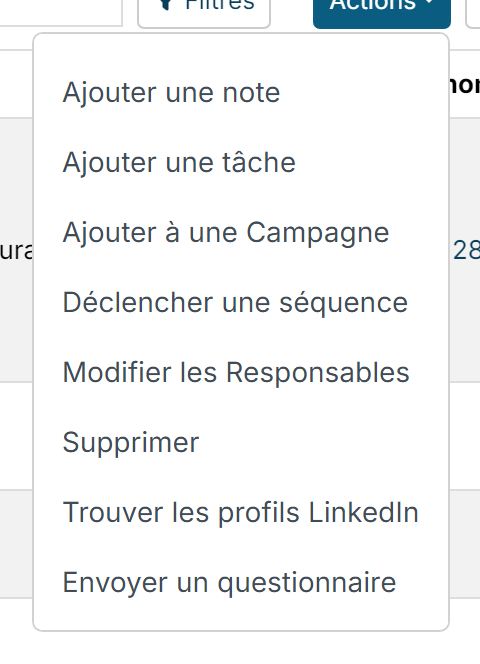
From a list: check candidates (candidates list, the views of a job) or contacts, then Actions › Find LinkedIn profiles. Once the number of searches is confirmed, the window processes the records one by one: when a single profile matches the name, in the record's city or at its employer, it is attached; when several match, or the only one found is in another city, the Choose button shows them to you; otherwise the record is marked not found. Stop halts the search after the current record.
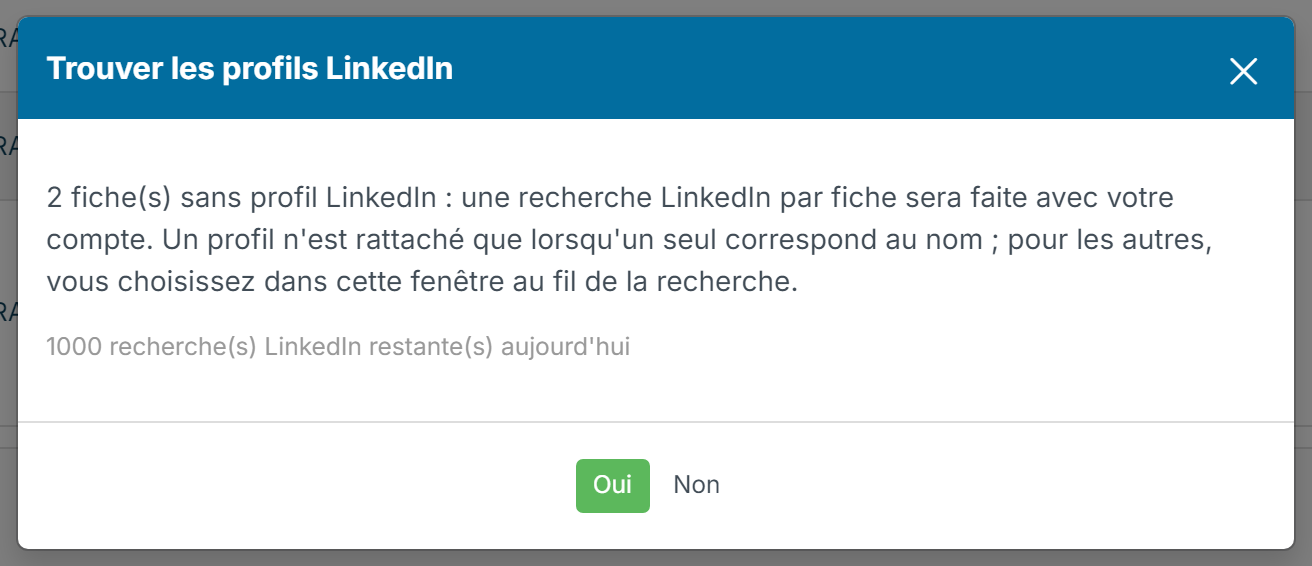
Each record spends one search of your LinkedIn account's daily quota; the number of searches left is shown in the window. Candidates imported through the browser extension are looked up automatically in the background, shortly after the import.
Find your conversations
Your LinkedIn conversations with the candidates and contacts in Nicoka show up in Messaging: as soon as they arrive for new messages, then every hour for the rest, including messages sent directly from LinkedIn. The LinkedIn and InMail tags single them out. For the full view, see Unified messaging.
Good to know
- As long as no LinkedIn account is connected, the LinkedIn send buttons do not appear on records.
- Only conversations with people who are in Nicoka are imported.
- Files you receive in a conversation are saved in the Documents tab of the record, and a resume becomes the record's resume. Unless it names another person, with a name and a phone number other than the record's, such as a friend's resume recommended by the candidate: it then stays on the message, off the record, in orange (hover it to read why). The … menu of the message then offers Save attachments in Nicoka to add it to the record after all, and Create a new Candidate from "file name", which sends it to Upload Resumes where you validate the new record.
- Files you send, from Nicoka or directly from LinkedIn, stay on the message in the timeline: they are not added to the record's Documents tab. A job ad sent to several candidates therefore does not clutter their records.
- A LinkedIn message sent from a template keeps that template on its activity. To count your sends per template in a report, add the Activity - Message Template constraint to a measure (Action - Message Template in a report on candidates), as you do with Email Template for your emails. Only messages that actually left are counted, not those waiting to be sent or those that failed. The template of an InMail is not tracked yet.
My account often gets disconnected
Nicoka uses your LinkedIn session. When LinkedIn closes that session, your integrations card shows Disconnected account and you receive the email “Action required: reconnect your account”. This is not an outage: the closure almost always comes from LinkedIn, following an action on your account.
The most common causes:
- You sign out of LinkedIn in your browser, or you change your LinkedIn password.
- You use LinkedIn Recruiter on another device: some Recruiter licences only allow one session at a time. LinkedIn asks you which one to keep, and Nicoka's is closed.
- The same LinkedIn account is used by several people: each time a colleague signs in, the others' sessions are closed. Nicoka flags it on the LinkedIn card of your integrations. One LinkedIn account per person avoids these disconnections.
- LinkedIn asks for a verification (code, security check) or temporarily restricts the account.
To reconnect the account:
- With the Nicoka plugin: open LinkedIn while signed in, then open the Nicoka panel. The account reconnects by itself.
- Without the plugin: click Reconnect on the LinkedIn card of your integrations, or the button in the email.
Your settings, limits and conversations are kept. For the 24 hours following a reconnection, sending limits are deliberately brought down to a quarter of their value: this is when LinkedIn watches a resumed session most closely.
You receive at most two emails per disconnection: the first a few hours after the cut (the next day if the plugin can reconnect the account by itself), then a reminder a week later if the account is still disconnected.
Troubleshooting
- The LinkedIn buttons do not appear on the record: your account is not connected. Open your integrations and connect it.
- “Disconnected account”: the session was closed on LinkedIn's side. Reconnect the account from the plugin panel or with Reconnect; see My account often gets disconnected above.
- Messages appear twice: turn off Import LinkedIn conversations if the browser plugin already syncs your conversations.
- A limit is reached: sending is refused until the next period. Adjust the limit with Edit limits, or wait until the next day or the next week.