Give a contact access to Nicoka
A contact of a customer account or a supplier can have their own account to log in to Nicoka: a subcontractor who fills in timesheets, a customer who follows tickets or approves documents. This account is managed from the Application Access section of the contact's record.
Before you start
- Your profile needs the right to update users, and update rights on the Application Access section.
- An access profile meant for contacts must exist: it sets what the person will see (see Define access profiles in Nicoka).
- An email address can only be used by one account, whether its access is active or removed.
1. Show the Application Access section
If the section is missing from the contact record menu, an administrator turns it on:
- In the side menu, open Customizing > Store. On the CRM card, click Customize.
- In the left-hand menu, expand Contacts and click Sections.
- On the Application Access row, click the pencil, tick Active and click Update. Also check that the relevant profiles are listed in the Visible by column.
If the section is still missing, the contact record has a custom layout: open a record, click Actions > Edit layout, then Save. The section, flagged "Not applied", is added to the menu.
2. Give access
- Open the contact's record and click Application Access.
- Tick Has access.
- Choose the Application: Nicoka for your application, or the Customer Portal if you turned it on (see The customer portal: Desk projects and tickets).
- Choose the Profile, and secondary profiles if needed.
- Check the Email: it is the login address of the account, and the one that receives the account creation email.
- Leave Send activation email ticked and click Save.
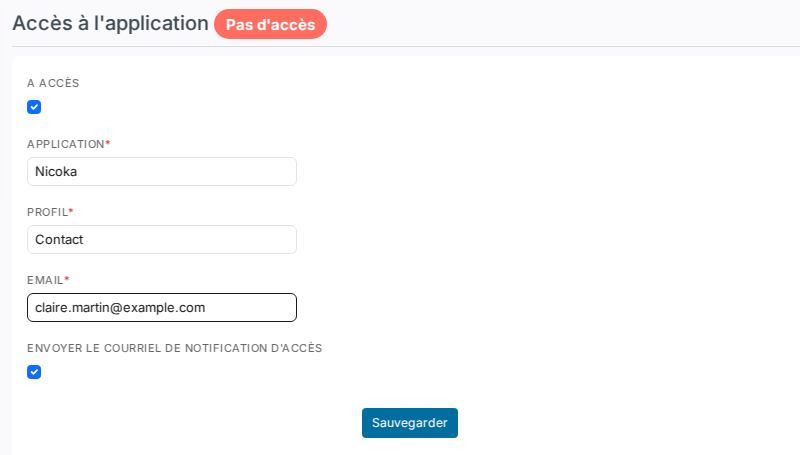
The contact receives an email with a link to set their password. The email template is chosen in the CRM settings, Customizing Points, Contacts block, Portal Access Notification Email point. An access email template chosen on the access profile takes precedence.
3. Resend the account creation email
Once access is given, the section shows the Resend account creation email and Remove access buttons.
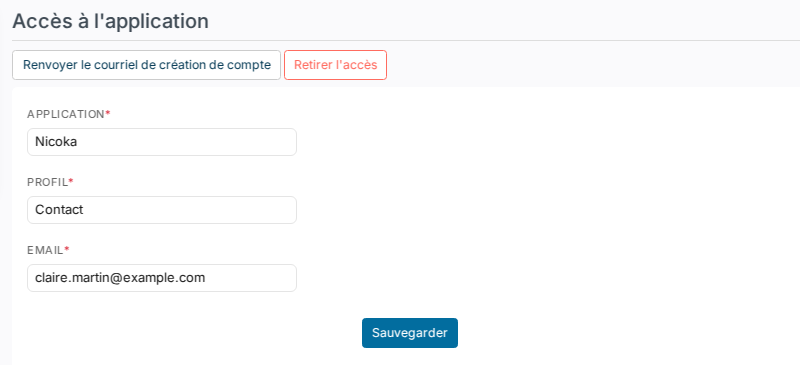
The email goes to the account's address, the one saved the last time you saved this section, not necessarily the one shown in the Email field. The button does not save the form: if you just changed the address, click Save first. If access was removed ("No access" badge), tick Has access and save before resending the email, otherwise the link leads to an inactive account.
4. Change the email address of a contact who already has access
Changing the address from the Info section of the record, through an import or through the API does not change the account's address. To carry it over:
- Open the Application Access section and check the Email field.
- If access was removed, tick Has access.
- Click Save.
The new address also becomes the login: tell the person they now log in with it. You can then resend the account creation email.
"Sorry but this email is aldready used by …"
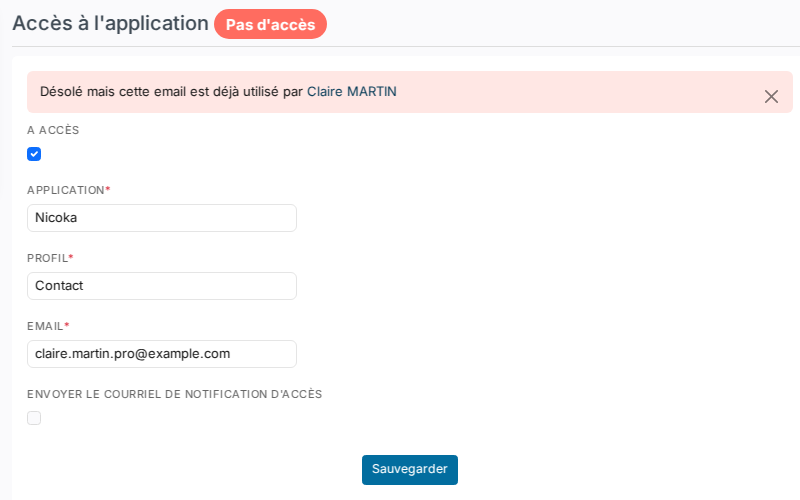
The address already belongs to the account of another record, even if its access was removed. It is often the same person recorded twice. Click the name in the message to open that record:
- if it is a duplicate, merge the two records (see Merging contacts). The merged record is deleted with its account, the address is freed and you can give access on the record you kept;
- if they are two different people, give each one their own address: a shared address can only open one account.
The message "Contact already exists with the same Email value" points to a duplicate record: the same merge solves it.
Remove access
The Remove access button deactivates the account: the person can no longer log in, their history is kept and the address stays reserved for that account. To reopen access, tick Has access and click Save.
Good to know
- If your instance requires SSO login, the send box and the resend button do not appear: the person logs in through your identity provider.
- The "Has access", "Application" or "Profile" labels may have been renamed on your instance.