Creating and sending an invoice
This article explains how to create an invoice, from a recruitment job or from scratch, complete it, check its PDF and send it to your customer. Before your first invoice, follow the steps in 6 essential steps to set up invoicing.
Invoice a recruitment from the job
If you are a recruitment agency, invoice your fees from the job. Two conditions:
- the job's workflow is Invoiceable. To check it, open Customizing > Store, click Customize on the ATS card, expand the Jobs section, click Workflows, then the name of the workflow: the Invoicing tab holds the Invoiceable box, the Placement Fees rate and the default Material;
- the job is linked to a customer account.

The job then shows the Orders and Invoices tabs. First validate the recruited candidate: at the last step of the workflow, the Validate Candidate button marks them as hired.
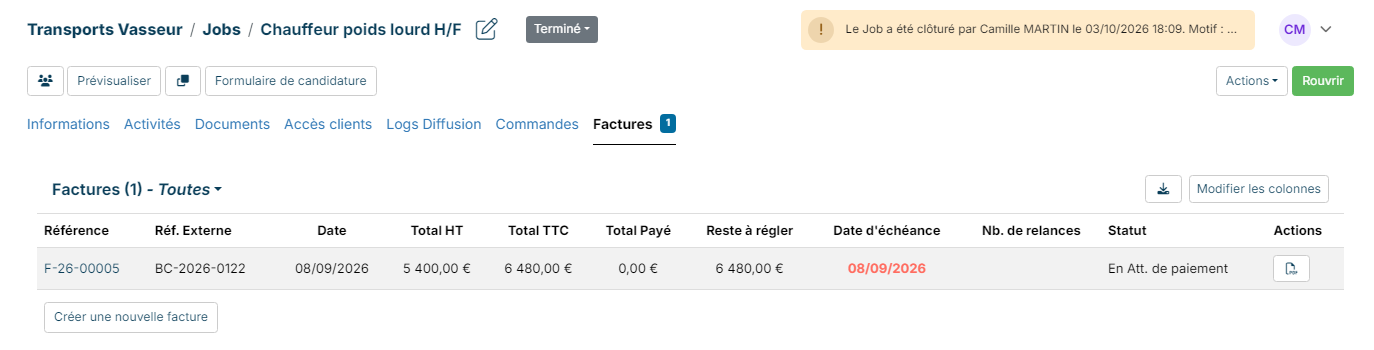
- On the job sheet, open the Invoices tab, then click Create a new invoice.
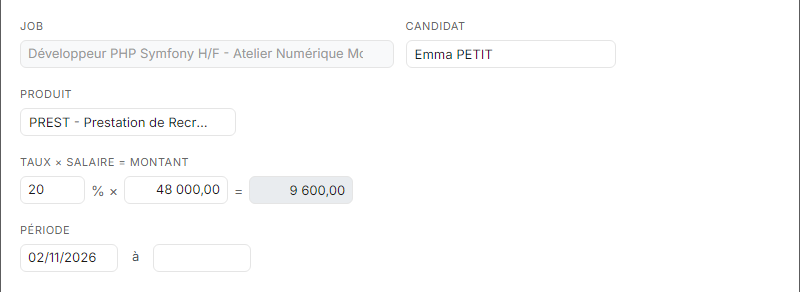
- The job is already filled in. Choose the Candidate: only the candidates marked as hired on this job are offered.
- The Material is preselected with the workflow's one; you can choose another one, or clear it to create the invoice without a line. With a material, Nicoka directly creates the first line of the invoice, assigned to the candidate:
- material invoiced as a rate (recruitment fees): the Rate × Salary = Amount line takes the placement fees rate of the order already placed for this job, else the Placement Fees rate negotiated with the customer (account sheet, Follow up tab), else the workflow's. As soon as you choose the candidate, it also takes the yearly salary validated at their hiring. The amount is computed live;
- material invoiced per quantity or per day (interim management): fill in Quantity × Price. If the candidate has a daily rate (ADR, or a salary validated per day), it is taken as the price;
- the Period takes their assignment's: their hire date, then their contract end date or, failing that, the end of the job's contract duration.
- Click Create.
From the job's Orders tab, Create a new order follows the same rules. The order keeps its rate in its header (Placement Fees rate, editable on the order): it is the contractual rate taken by the invoices later created from the job. An order created from the account takes the account's rate, like its invoicing mode. If you then create a project from this order, the candidate becomes one of its Project Partners.
Create an invoice manually
- In the side menu, click Sales, then Invoices.
- Click Create a new invoice.
- Choose the Customer (and its Site if needed), check the Type and the Date, and enter a Label.
- Click Create.
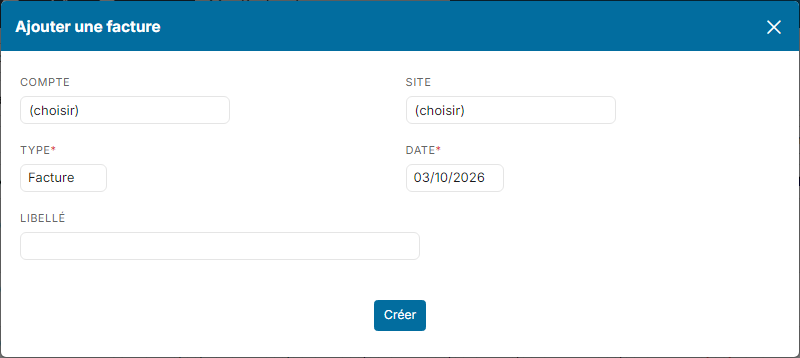
The invoice is created at the first step of your invoicing workflow (Draft in the standard workflow), with an automatically assigned number. To set up your invoice numbering, see Invoice numbering.
Add the lines
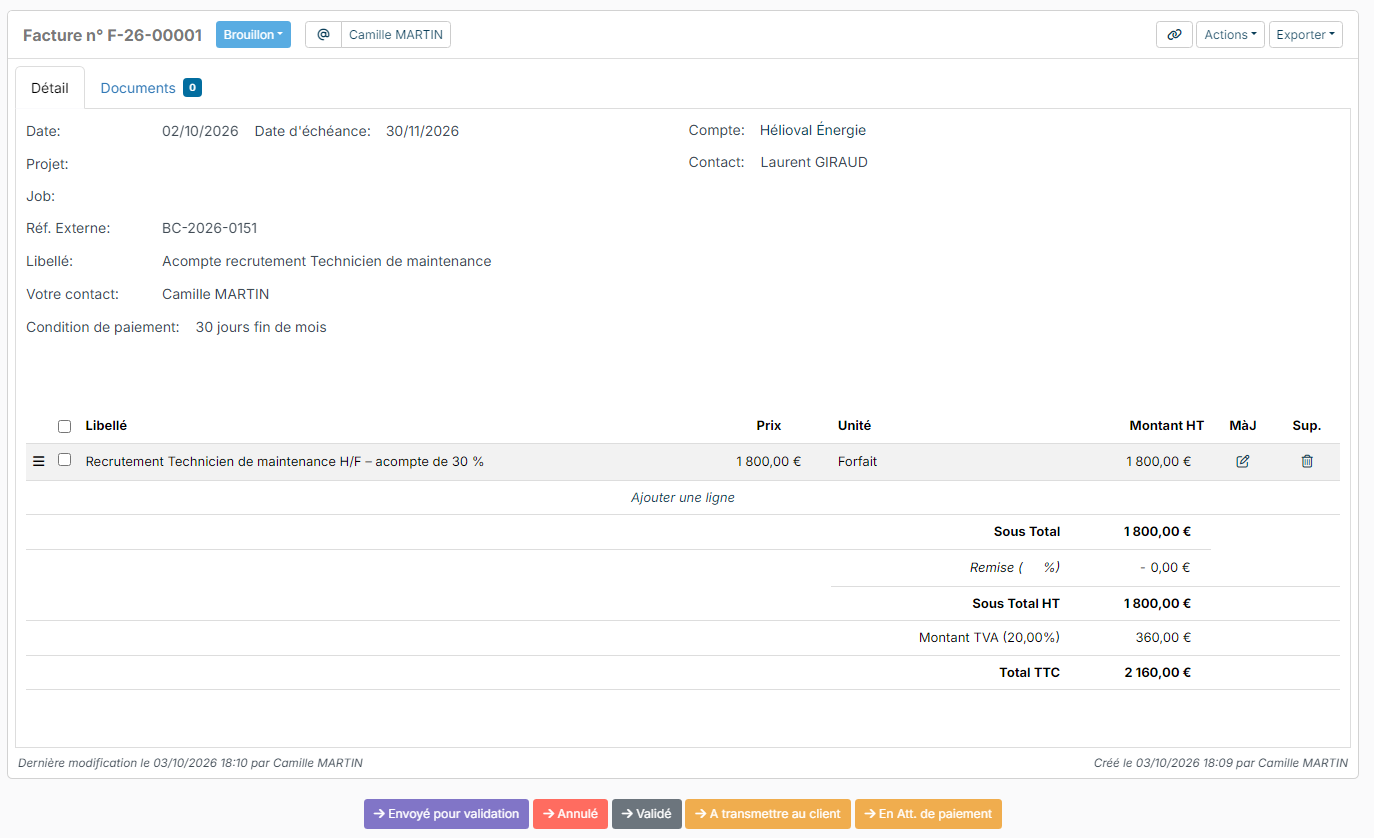
- Under the invoice lines, click Add a new row.
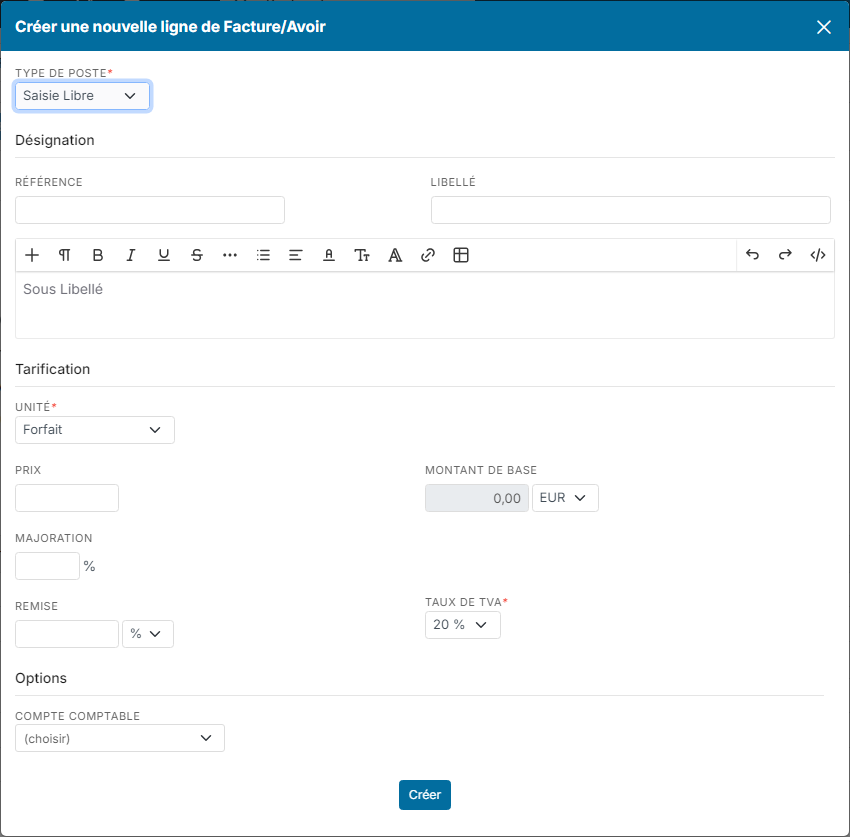
- Choose the item type: one of your products (Product/Service), or Standard for a free line.
- Enter the Label and, if needed, a sub-label.
- Choose the Unit, for example Flat Rate, Per Day, Per Hour, Per Month, Per User/Month, or Taux to invoice a percentage of a base amount, such as a yearly salary.
- Enter the Price and, if needed, an Increase or a Discount. The VAT Rate is prefilled; you can choose another one.
- Click Create.
The totals are recalculated with each line. The icons of each line let you edit or delete it as long as the invoice can be modified.
Good to know: to split an invoice's revenue between your team members, for example to calculate recruiters' commissions, tick Enable revenue distribution on the invoice type (Sales customizing, Invoices > Types section). Invoices of this type then show a Revenu distribution tab.
On the same type, two boxes make this information mandatory when the invoice is issued, that is when it leaves its starting status (for example Draft), whether through a step button, an email or a status change:
- Job is required ? (the label uses the name you give to jobs): an invoice without a job cannot be issued.
- Revenue distribution required: the distribution must total 100% of the commissionable amount excluding tax. As soon as you pick the invoice's job, it is prefilled at 100% for the team member the job is assigned to: you only edit it when the revenue is shared. If you then correct the job, this line moves to the new job's team member; a distribution typed by hand is never changed.
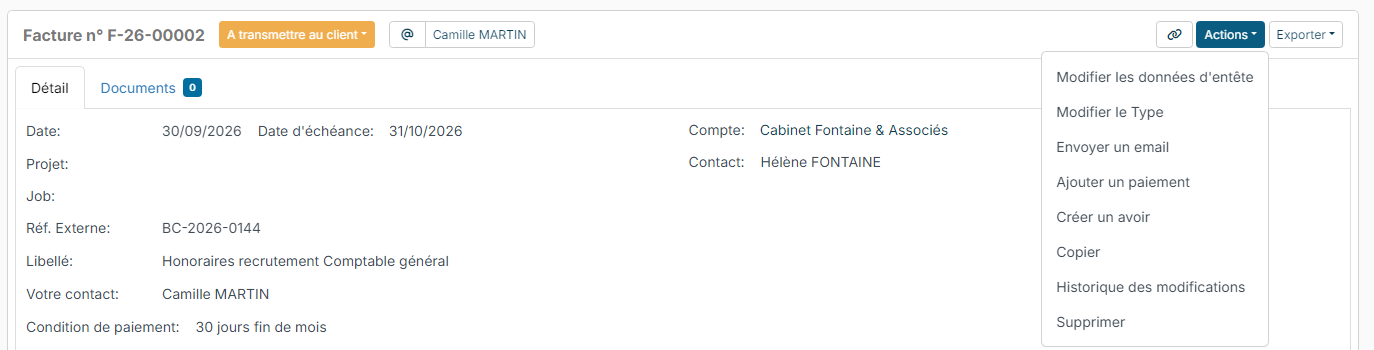
Cancelling a draft invoice and recording a payment are never blocked. The Job field of the header lists the jobs of the whole group of the invoiced account (parent account and sub-accounts); you can correct it from Actions > Change Header Data, even after the invoice has been sent, without changing its reference, date or amounts.
Check the PDF
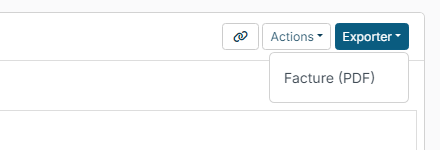
Click Export, at the top right of the invoice, then the template you want, for example the invoice template. The PDF opens in a new tab: check the account, contact and line details before sending. To adapt the layout, see Creating an invoice template.
Move the invoice forward
The buttons under the invoice move it from one step of your invoicing workflow to the next, for example from Draft to To be send to customer, then Waiting for payment. The steps offered depend on your settings.

Electronic invoicing: for a customer subject to electronic invoicing, the invoice is not sent by email but through the certified platform, with the Sent to certified e-invoicing platform button. See Electronic invoicing: how it works in Nicoka.
Send the invoice by email
- On the invoice, click Actions, then Send a message.
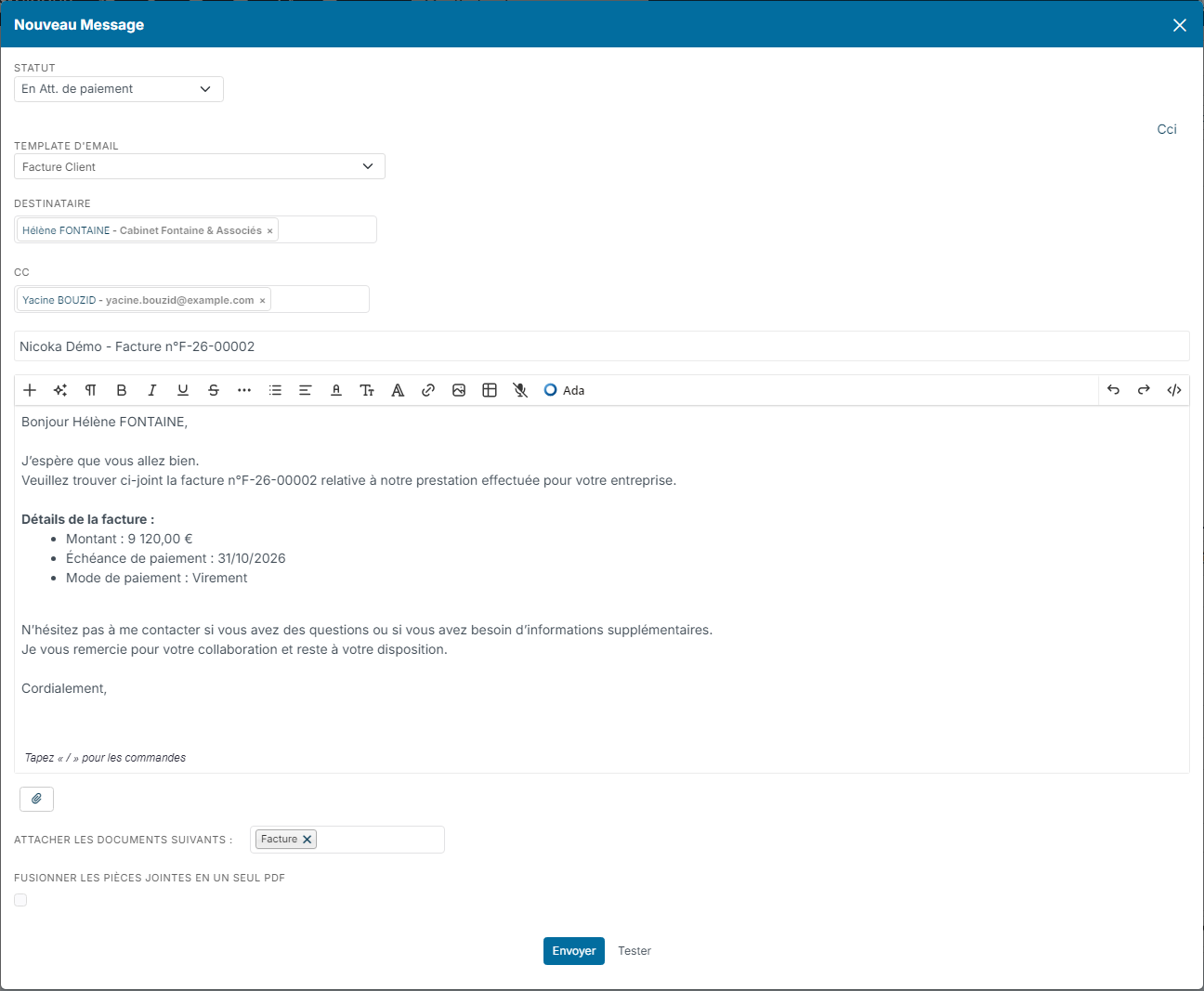
- In Status, choose the status the invoice will take once the email is sent, for example Waiting for payment.
- Choose your invoice Email Template: the subject and message are filled in.
- Check the recipients. The recipient is the invoice contact; the account's invoicing contacts are added in CC.
- In Attach the following document, choose the invoice PDF. With several documents, the Merge attachments into a single PDF box combines them into one file.
- Click Send.
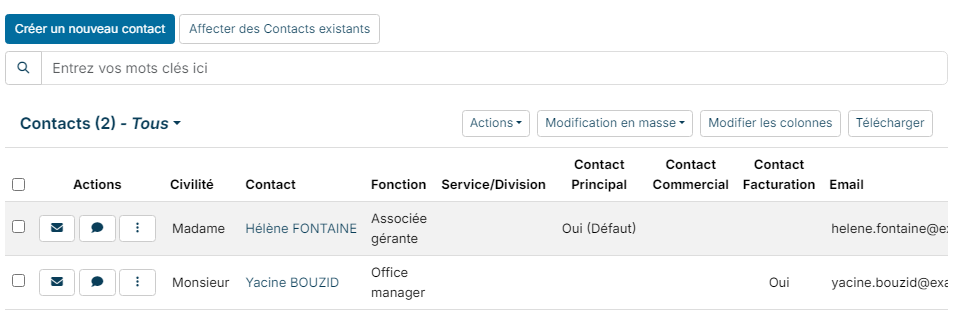
To copy a contact on all the invoices of an account, open the account sheet, Contacts tab, and choose Yes in that contact's Invoicing Contact column.
To copy your accounting team or an archiving tool on all your invoices, whatever the account, use the Sales customizing points: open Settings > Modules, click Settings on the Sales management card, then Customizing points. Fill in Invoice mailing CC (copy visible to the customer) and Invoice mailing BCC (hidden copy, for example for Dext). Separate several addresses with a semicolon. These addresses are pre-filled in the Cc and Bcc fields of every invoice email, from Send an email as well as from a step of the invoicing process, and can still be edited before sending.
Once the invoice is sent, track its payment: see Tracking invoices and payments.
Frequently asked questions
Can I change the payment terms?
Yes. Your payment terms are managed in the Sales customizing, Sales > Payment Conditions section. On an invoice, change them with Actions > Change Header Data.
Can I reuse an existing invoice?
Yes: Actions > Copy creates a new invoice from it.
Can I change an invoice once it has been sent?
No: an issued invoice can no longer be changed. To correct a mistake, create a credit note, then a new invoice. See Creating and managing a credit note.
Can I delete an invoice?
The Actions menu offers Delete as long as the invoice has received no payment and your rights allow it. For an invoice already sent to the customer, issue a credit note instead.
Can I create several invoices at once?
Yes, from your orders' billing schedules: see Create a billing schedule.